
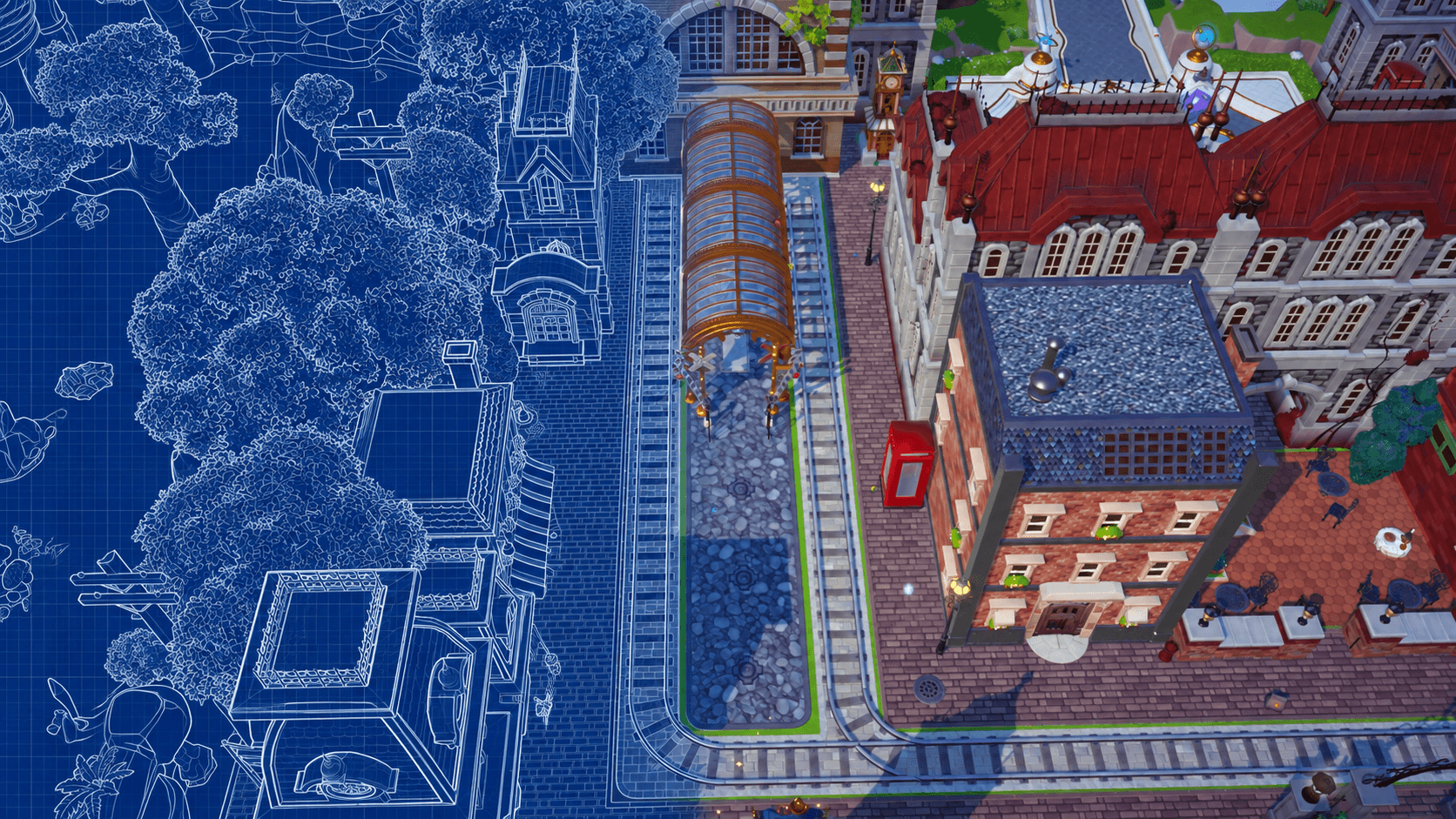
Decoration Presets let you save part of your Valley as a reusable layout. With Preset code sharing, you can also give that layout to another player, or import a build that inspires you, without recreating every object placement by hand.
What can a Decoration Preset do?
- Save a decorated section before rebuilding a Biome.
- Copy a favorite layout to another suitable location.
- Restore a design you temporarily removed.
- Share the layout with other players through a temporary code.
- Import another creator’s design and adapt it to your own Valley.
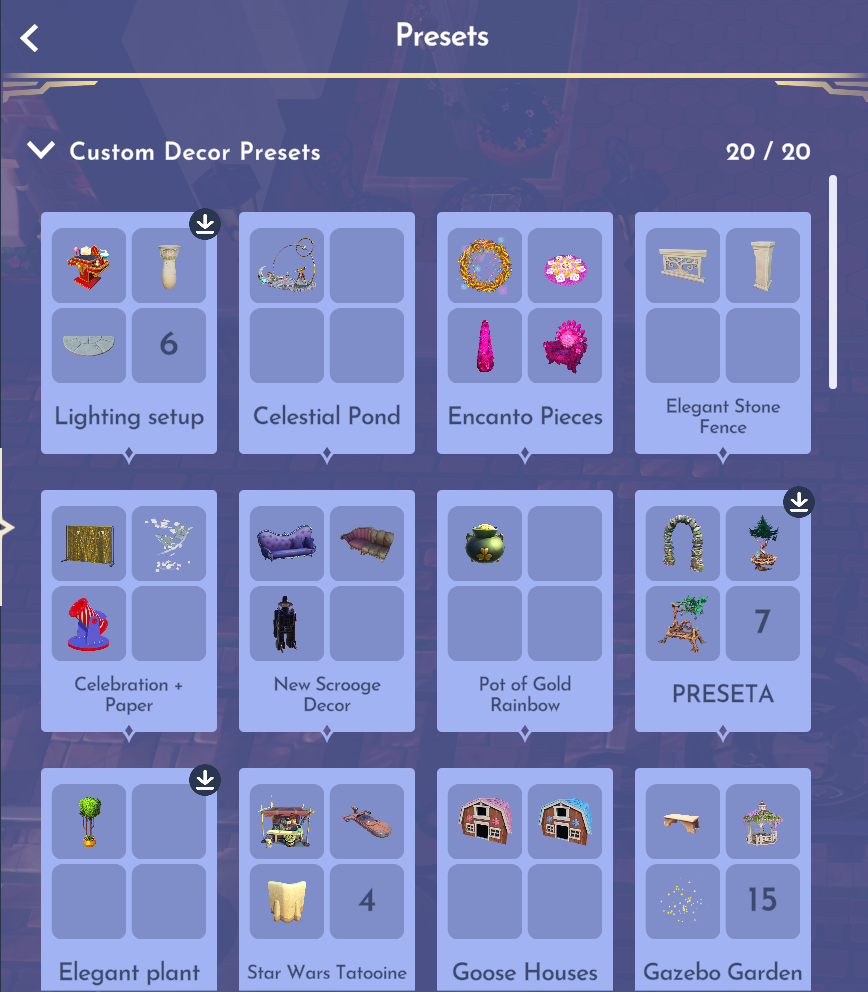
Before you save a Preset
- Everything you intend to share is inside the selected build area.
- Temporary objects, dropped materials, and test lighting have been removed.
- Entrances, paths, camera angles, and character movement still work.
- You have a clear daytime or well-lit preview image.
- The Preset has a specific name, such as “Forest Tea Garden,” instead of “Build 4.”
How to create and test a Preset
- 1Open Furniture Mode
Use the Preset or grouping tools and select the decorated section you want to save. The exact button prompt varies by platform, so follow the controls shown on your screen.
- 2Review the selected area
Make sure the highlighted footprint contains the objects you expect and does not catch unrelated decor nearby.
- 3Save and name it
Choose a descriptive name that tells another player what the layout is before they open the preview.
- 4Preview it yourself
Confirm that the preview is correct and that the layout can be placed without surprise objects appearing outside the build.
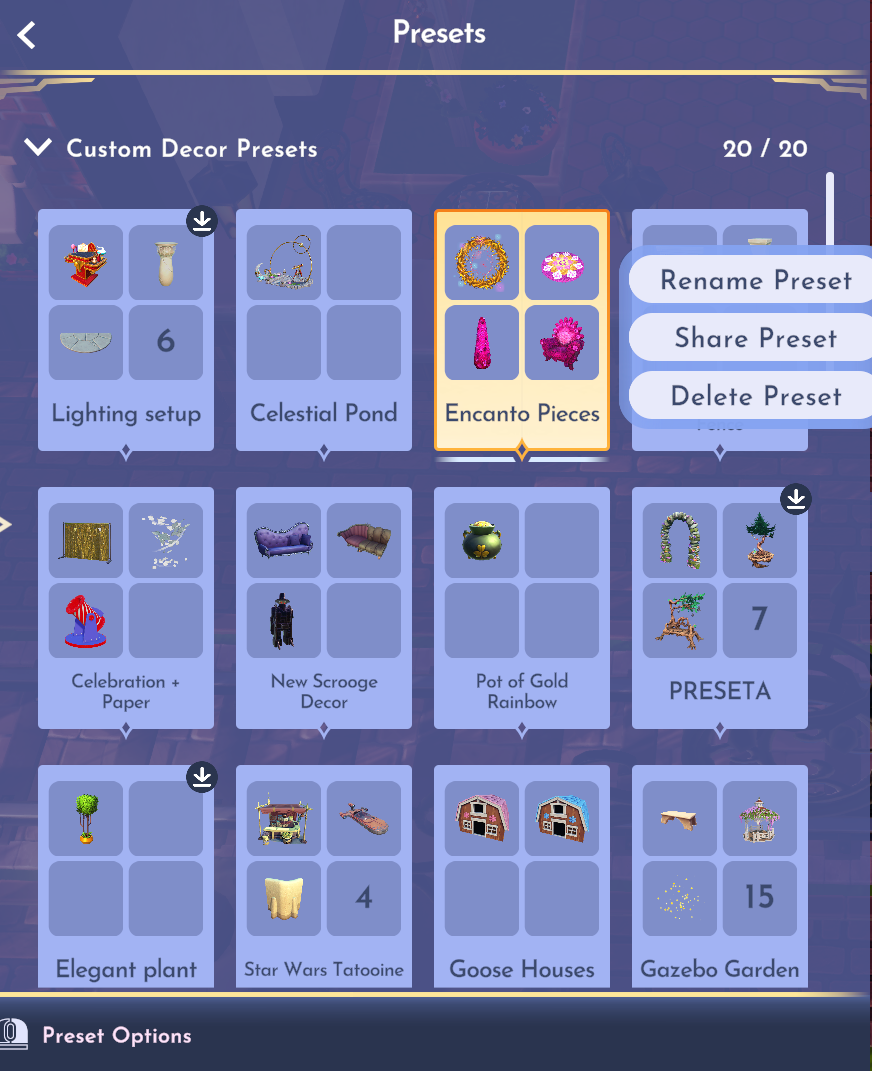
How to generate and post a share code
Open your Presets collection, select the layout you want to share, choose Share Preset, and generate its code. Preset share codes are valid for 14 days. The code remains valid during that window even if you later change or remove the original Preset.
- The exact code and its expiration date.
- A clear image of the finished build.
- The original creator’s name or handle.
- The Biome or area where it was built.
- A short note about the build’s size, purpose, and placement.
- Any missing-item or placement quirks players should know about.
How to import someone else’s Preset
- 1Open the Presets collection
In Furniture Mode, find the option to add or import a Preset code and enter the code exactly as it was shared.
- 2Review before placing
Check the preview, creator information, footprint, and whether the build relies on items you do not own.
- 3Add it before it expires
Save the shared Preset to your collection during the 14-day code window. You do not have to place it immediately.
- 4Choose a clear destination
Make enough open space, place the layout, then walk the area and adjust anything that conflicts with your Valley.
What are Mirages?
If you do not own enough copies of an item used in an imported Preset, the missing object appears as a dark placeholder called a Mirage. It keeps the original item’s position and shape in the layout so you can finish the build without guessing where everything belongs.
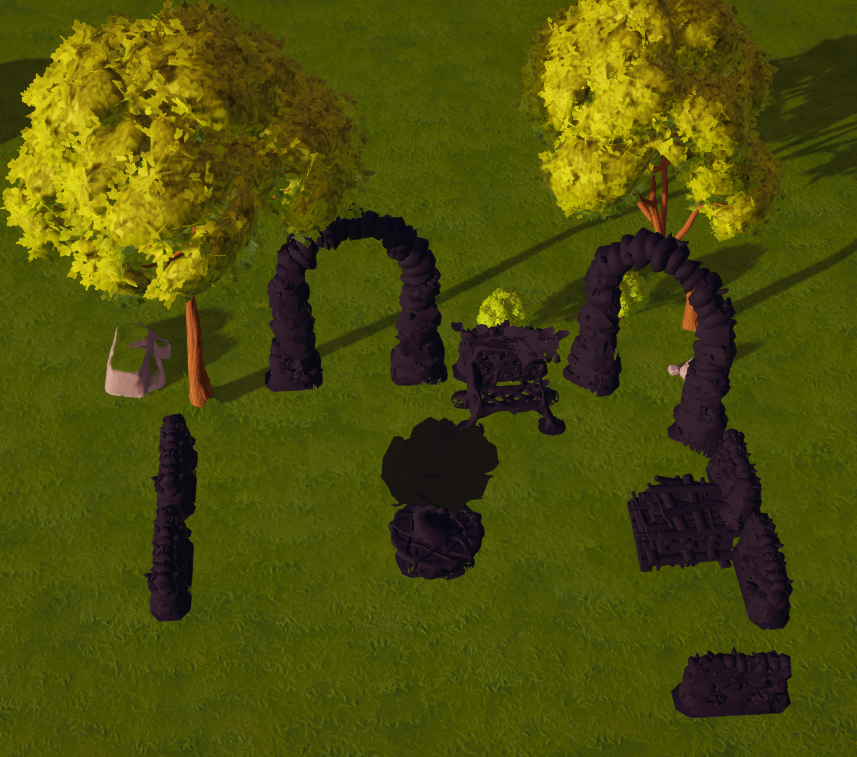
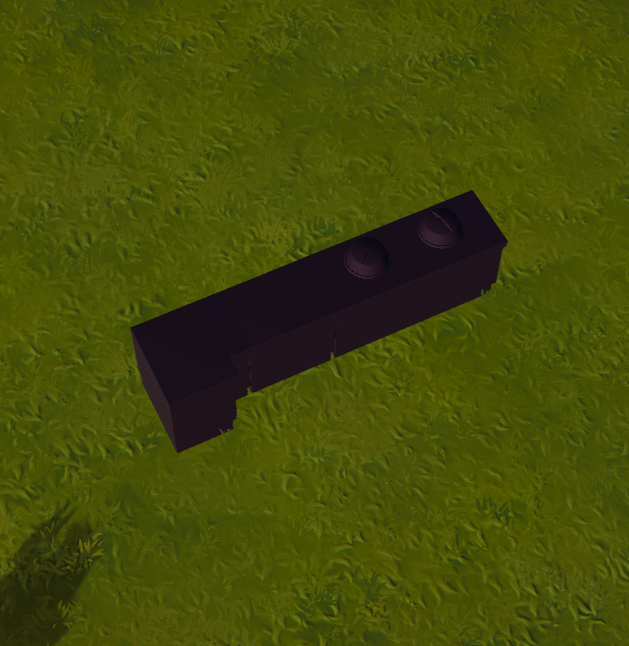
How a Premium Shop Mirage works
- 1Interact with the Mirage
Walk up to the dark placeholder and select the interaction prompt. The game checks how the missing item can currently be obtained.
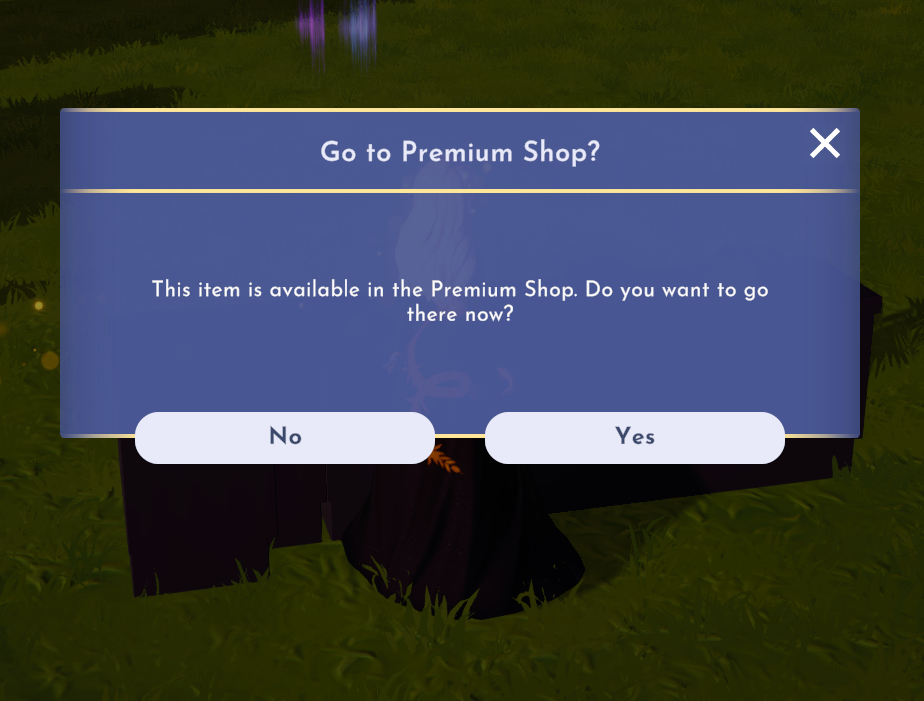
- 2Follow the Premium Shop prompt
If the missing piece is a Premium Shop item, the game asks whether you want to go to the Shop. Choose Yes to continue.
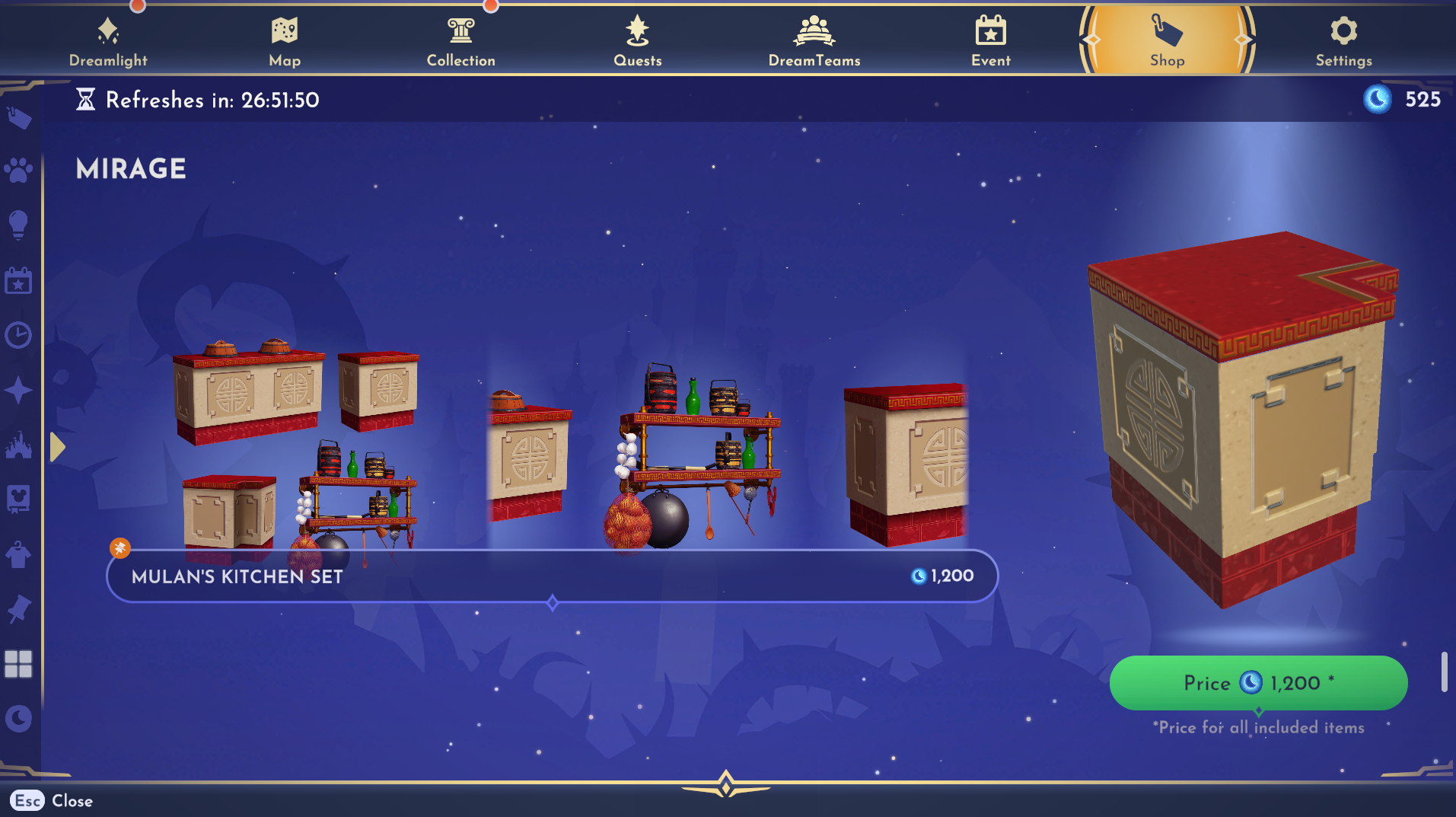
- 3Open the temporary Mirage category
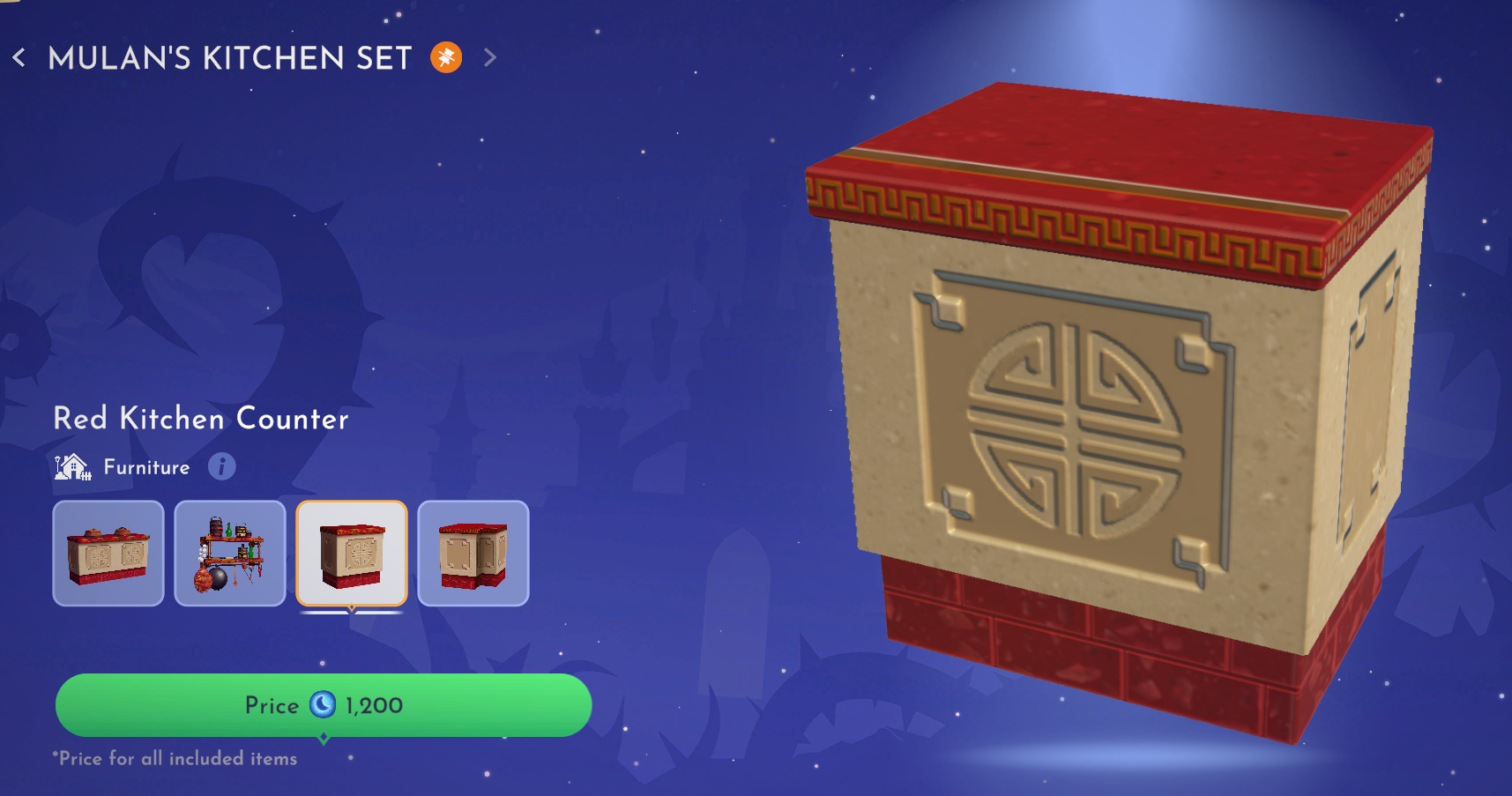
The Shop opens a Mirage category containing the item or bundle connected to your placeholder. This lets you review the complete set and its Moonstone price without searching the normal weekly tiles.
- 4Review before purchasing
Open the listing to inspect every included item and the full bundle price. Purchasing is optional, and the Mirage can remain in your layout if you decide to wait.
Other Mirage outcomes
- If the missing item can be crafted or purchased through a standard in-game source, the Mirage can direct you to that option.
- If the item belongs to the current Star Path, the game redirects you to the correct Star Path page.
- If the item came from a limited series or bundle and is not currently available, the game tells you that the item is not available for now.
- Premium Shop items and Mirage Shop purchasing are not available in the Apple Arcade Edition.
Share better Presets
- Show the whole footprint in the main preview before adding detail shots.
- Explain whether the layout is a plaza, seating area, market, DreamSnaps stage, or smaller filler build.
- Test the saved Preset yourself before giving anyone the code.
- Credit the original designer clearly, even if they are not yet on Valley Creator HQ.
- Generate a fresh code if people still want the build after the first one expires.
Quick publishing checklist
- The code was copied exactly.
- The expiration date is 14 days from code generation.
- The featured image clearly shows the finished layout.
- The original creator is credited.
- The Biome, size, and placement notes are included.
- The Preset has been previewed or tested.