
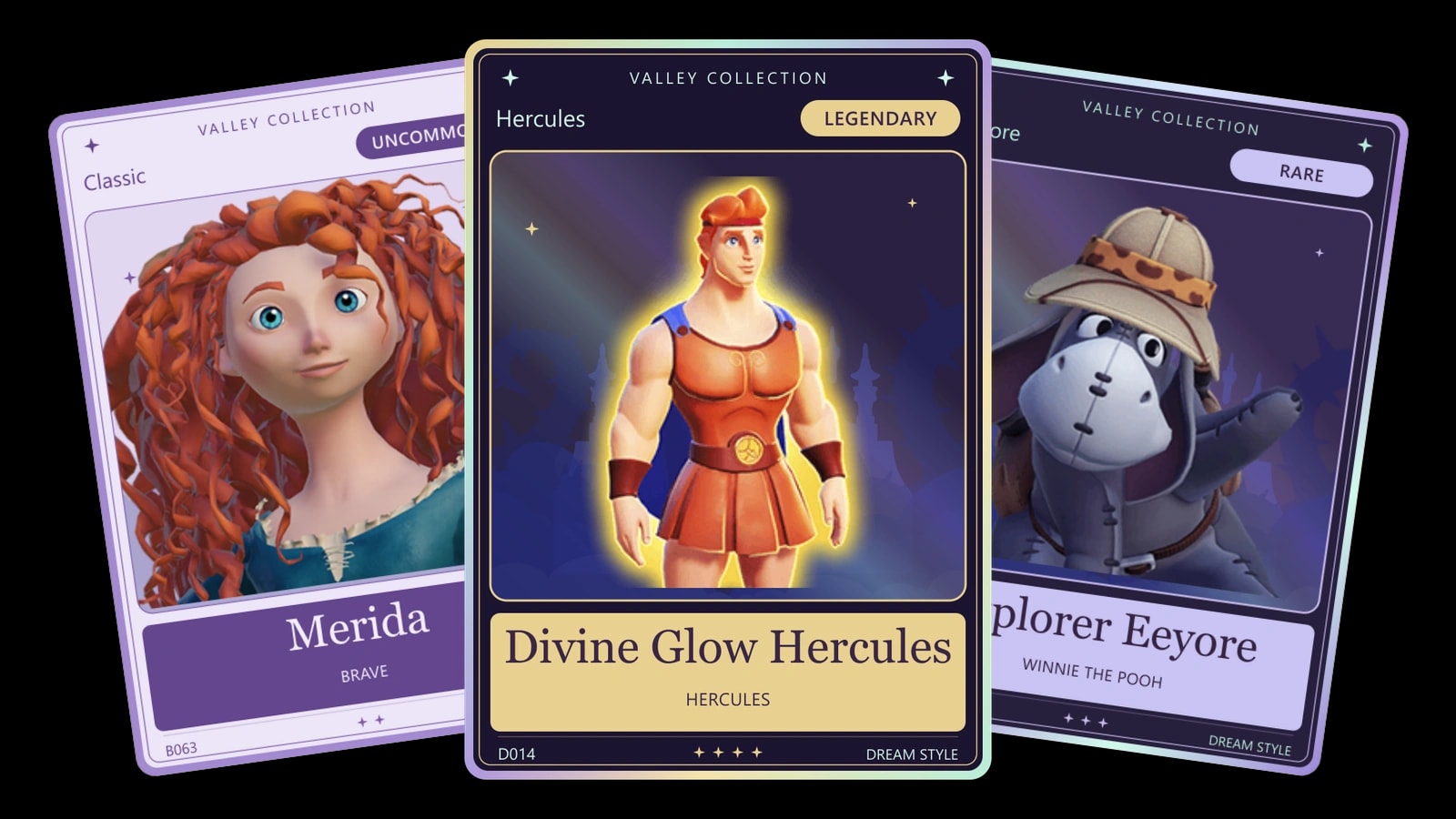
Bring a little more Valley magic to your stream! Disney Card Capture Checkin for ValleyCreatorHQ lets your viewers open card packs, discover familiar villagers and Dream Styles, and build their own collection of 141 cards.
Install it with one click, connect your Channel Point rewards, and make the colors, pack opening, and chat messages your own. This guide covers the community widget, version 0.5.3.
See it in action
Install the widget
- Sign in to StreamElements with the Twitch account you stream from.
- Open the install link above and follow the Overlay Share import prompts.
- Open the imported overlay in your StreamElements overlay editor, then select the card widget to see its settings.
- Save the overlay after making changes.
The artwork loads automatically from ValleyCreatorHQ. You do not need to upload the cards or paste code into the editor for this one-click installation.
You will need a Twitch channel connected to StreamElements and streaming software that supports a Browser Source, such as OBS. Your Twitch channel must have Channel Points available to use reward redemptions. Chat announcements are optional and require your own Jebaited token.
1. Connect Twitch chat with Jebaited
Jebaited allows the widget to announce card pulls and collection updates in your Twitch chat. Each streamer needs their own token for their own channel.
Get your chat token
- Visit Jebaited and choose Sign In with StreamElements.
- Sign in using the StreamElements account connected to your Twitch channel.
- Open the Jebaited Token Dashboard.
- Create a token with the botMsg scope. Button labels may vary; botMsg is the permission used by this widget.
- Copy the token itself, without quotation marks or a full API URL.
Add the token to the widget
- In the widget settings, expand 10 · Chat connection.
- Turn on Send collection replies to Twitch chat.
- Paste your token into Jebaited botMsg token.
- Keep Pull announcement delay from pack entrance (seconds) at 6 to start.
- Save the overlay.
Make sure the StreamElements bot has joined your Twitch channel. You can join it from your StreamElements bot settings, then give it moderator status in Twitch chat:
/mod StreamElementsBack in 10 · Chat connection, select Send a chat connection test and check Twitch chat for the message. This button intentionally posts to your channel.
Next, try Test pack + chat (posts to chat; no collection changes). It opens a sample pack and sends a [TEST] card announcement without adding a card to anyone’s collection.
The six-second delay starts when the pack enters the screen. Longer opening animations can push the announcement back until the card is revealed.
Keep your token private. Do not include it in screenshots or shared widget exports. If it is exposed, revoke it through Jebaited and generate a replacement.
2. Connect your Channel Point rewards
The widget matches Twitch rewards by name. You do not need a Reward ID or a separate chatbot command.
Create your rewards on Twitch
Open your Twitch Creator Dashboard, go to Viewer Rewards → Channel Points, and open the custom reward manager. Create up to three rewards with your preferred names, point costs, and redemption limits. The rewards do not need viewer text input.
Here is an example setup:
| Example reward | Widget field | What it gives |
|---|---|---|
| Valley Check In | Daily check-in reward name | One daily pack per viewer. |
| Extra Valley Card | Extra-chance reward name | Another random pull, even after the daily pack. |
| Bonus Valley Card | Second extra-chance reward name | A second optional reward for another random pull. |
You can choose different reward names and prices. Use a different name for each enabled reward.
Match those names in the widget
- Expand 01 · Channel-point rewards in StreamElements.
- Copy each Twitch reward name into its matching field.
- Match spelling, punctuation, internal spaces, and emoji. Capitalization and spaces at the beginning or end are ignored.
- Leave unused reward fields blank and save the overlay.
If you rename a Twitch reward later, update its name in the widget too.
Understand daily packs and extra chances
The daily pack resets at midnight in your selected Daily reset timezone. It is a calendar-day allowance, rather than a rolling 24-hour cooldown. Change the timezone in 09 · Collection rules and commands. The default is Europe/Dublin; examples include America/New_York and America/Los_Angeles.
The free !checkin chat command is enabled by default and shares the same daily allowance as the daily Channel Point reward. To make daily check-ins available only through Channel Points, turn off Allow daily check-in through chat in section 09.
Extra-chance rewards bypass the daily allowance, but can still give duplicates. They do not guarantee a new card or a higher rarity. Set their prices, cooldowns, and redemption limits on Twitch.
The widget does not automatically refund or complete Twitch redemptions. If someone spends points on the daily reward after using their daily pack, manage any refund through Twitch’s reward queue.
3. Make the widget yours
Open the widget’s settings to customize it without editing code. StreamElements organizes these controls into collapsible groups.
| Settings section | What you can change |
|---|---|
| 02 · Theme colors | Color presets, pack and panel colors, and rarity colors. Choose Custom colors before adjusting individual color pickers. |
| 03 · Pack design | Pack wording, optional logo or background, emblem, and border. |
| 04 · Card design | Collection title, card-name font and size, rarity labels, and background decorations. |
| 05 · Layout and typography | Side or stacked layout, scale, positioning, fonts, and text sizes. |
| 06 · Display and wording | Viewer name, rarity chance, discovery status, collection progress, and labels. |
| 07 · Animation | Opening speed, entrance, wiggle, tear, reveal, hold time, foil effects, and reduced motion. |
| 08 · Sounds | Your own opening and reveal sounds, rarity-specific sounds, and volume. No sound files are bundled. |
| 09 · Collection rules and commands | Daily timezone, chat commands, rarity weights, milestones, and collection save slot. |
| 10 · Chat connection | Jebaited token, chat replies, announcement delay, and chat tests. |
| 11 · Chat message templates | New-card, duplicate, gift, collection-total, and other chat messages. |
| 12 · Previews and diagnostics | Sample viewer name, rarity previews, duplicate previews, and milestone previews. |
Layout tips
Start with a widget canvas around 720 × 820 pixels for side layout or 500 × 900 pixels for stacked layout, then use the preview buttons to adjust it. These are starting points, not fixed requirements.
The widget fits the available canvas and switches side layout to stacked when the content area is narrower than 480 pixels. If anything looks cramped, increase the canvas or reduce the widget and text sizes. Custom local fonts need to be installed on the computer running the browser source.
Rarities and collection progress
The default rarity weights are:
| Rarity | Default chance |
|---|---|
| Common | 60% |
| Uncommon | 25% |
| Rare | 12% |
| Legendary | 3% |
The widget rolls a rarity first, then chooses a card from that tier. The percentage shown on screen is the tier’s chance, not the chance of that exact card. Changing the displayed rarity name does not change its probability; edit the weights in section 09 to change the odds. A weight of 0 disables that tier.
These are custom collection rarities, separate from the official game. Collection progress counts different cards collected. Extra copies of a card do not increase “Collection: X of 141 cards.”
Personalize chat messages
In 11 · Chat message templates, use placeholders to add the viewer, card, and collection details automatically:
| Placeholder | Displays |
|---|---|
| {username} | Viewer receiving the card. |
| {card} | Character or Dream Style card name. |
| {rarity} | Rarity label. |
| {rarityPercent} | Rarity-tier chance, including the percentage sign. |
| {count} | Copies of that card owned. |
| {unique} | Different cards collected. |
| {total} | Cards available in the collection. |
For example:
@{username} discovered {card}! {rarity} ({rarityPercent} rarity chance). Collection: {unique} of {total} cards.Use the placeholders that apply to each message type, and keep messages short enough to read comfortably in Twitch chat.
4. Add the overlay to your stream
- Save your StreamElements overlay and copy its overlay URL.
- In OBS or your streaming app, add a Browser Source.
- Paste the overlay URL and match the dimensions of the full StreamElements overlay, such as 1920 × 1080. These are separate from the widget’s own canvas dimensions.
- Position the source above gameplay so the pack reveal is visible.
The widget is normally invisible between pack openings. Keep its browser source loaded so it can receive events.
Run only one collector at a time. Close the StreamElements editor and extra overlay tabs while the OBS copy is active. Multiple independent copies can process the same redemption, duplicate animations, and conflict over collection saves.
5. Test before your first stream
- Use the preview buttons in 12 · Previews and diagnostics to check colors, layout, and timing. Ordinary previews do not award cards or post chat.
- Use the chat tests in 10 · Chat connection to check announcements.
- Save, close other active copies, and leave your streaming app’s browser source running.
- Have a viewer redeem an enabled reward on Twitch. An extra-chance reward is useful for repeated tests. A real redemption awards a real card.
- Confirm the correct viewer name, card reveal, discovery or duplicate status, collection progress, and chat announcement.
A working preview or chat connection test does not prove that Twitch redemptions are reaching the widget. Always complete a real redemption test before going live.
Viewer commands
These defaults work while the widget is loaded. Rename or disable the relevant commands in section 09 if you prefer. Chat replies require Jebaited.
| Command | What it does |
|---|---|
| !checkin | Opens the daily pack, if chat check-ins are enabled. |
| !collection | Shows your unique-card total and packs opened. |
| !collection @viewer | Checks another viewer’s collection. |
| !gift @viewer B001 | Gifts a duplicate of that card. You need at least two copies and keep one. |
| !valleygive @viewer | Lets the broadcaster or a moderator grant a random bonus card. |
| !valleygive @viewer B001 | Lets the broadcaster or a moderator grant a specific card. |
Troubleshooting
| What is happening? | What to check |
|---|---|
| Preview works, but a reward does nothing | Check the exact reward name, channel, enabled reward, loaded browser source, and daily allowance. After a real redeem, use Show reward connection status in section 01 to inspect the received name. |
| A card opens, but nothing appears in chat | Check that chat replies are enabled, the Jebaited token has botMsg access for the right channel, and the StreamElements bot has joined. Run the chat connection test. |
| The chat test works, but a card announcement does not | Try Test pack + chat, wait for the configured delay, and check the message templates and connection-status text. |
| Artwork will not load | Check the browser source’s internet connection and access to ValleyCreatorHQ, then reload. A failed startup artwork check prevents live awards. |
| Animations or messages appear twice | Close the editor, spare overlay tabs, and duplicate browser-source instances. Keep one collector active. |
| The card or information panel is cut off | Increase the widget canvas, reduce scale or text size, or choose stacked layout. |
| Sounds do not play | Upload your own sounds, enable them, raise the volume, and check your browser-source audio settings. |
| A collection looks empty | Check that you are using the same Twitch channel and the exact previous collection save slot. |
Collections are saved through StreamElements. Leave Collection save slot at Main unless you intentionally want a separate collection. Changing the channel, save slot, or overlay context does not automatically migrate existing cards. Before replacing a working installation, keep a private backup of its settings and verify that the existing collection is available in the intended context.
Help and credits
Need a hand? Contact Kristabyte with the widget version, reward name, and what happened during a real redemption. Remove tokens and private overlay URLs from anything you share.
Widget and card-frame design by Kristabyte for ValleyCreatorHQ. Character artwork is sourced from the Disney Dreamlight Valley Wiki and belongs to its respective rights holders, including Disney/Pixar and Gameloft. This is an unofficial fan-made community widget.